Selecting the ideal video editing tool does not require an expensive monthly subscription or months of technical training. Modern free video editors offer professional-grade trimming, built-in effects, and seamless social media exports without putting frustrating watermarks on your finished content.
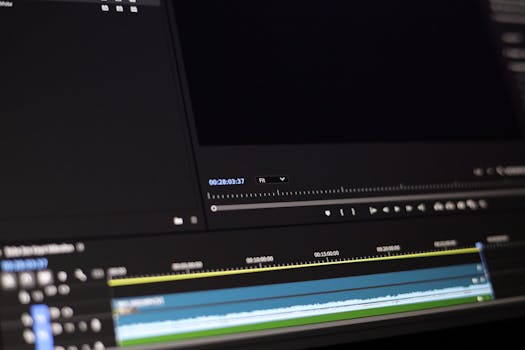
Starting out in video editing can feel overwhelming due to complex interfaces and dense technical jargon. Finding software that scales with your growing skill set while keeping the initial learning curve gentle is essential for long-term consistency.
1. Essential Features to Look For in Beginner Video Editors
Intuitive Timeline Navigation
A clean, visual timeline is the foundation of any accessible editing program. Beginners need a layout where dragging, trimming, splitting, and reordering clips feels natural. Magnetic timelines or simple drag-and-drop tracks prevent common mistakes like accidental gaps between scenes or lost audio sync.
Built-In Templates and Media Libraries
Starting from a blank canvas can slow down your creative process. Software options that provide ready-to-use titles, transitions, royalty-free audio tracks, and graphic overlays allow newcomers to publish polished videos right away without sourcing external assets.
Clean Exports Without Watermarks
Many video editors claim to be free, only to slap a giant promotional watermark across your finished project upon export. True beginner-friendly software lets you render standard high-definition videos at 1080p resolution with zero branded watermarks attached.
Automated Captioning and Text Tools
With mobile viewers watching content on mute, text overlays and dynamic subtitles are critical. Look for programs with built-in auto-captioning features powered by speech recognition, which saves hours of manual transcription work.
2. Best Free Video Editing Software Applications
Several high-quality platforms cater to first-time editors on Windows, Mac, and browser-based systems. Each tool balances simplicity, feature set, and performance in distinct ways.
CapCut Desktop
Originally created for mobile creators, CapCut’s desktop version has evolved into an exceptional editing platform for PC and Mac. It features a streamlined interface paired with powerful AI-driven capabilities, including auto-captions, background removal, and smart tracking. Its huge selection of trending filters, sound effects, and visual transitions makes it especially popular among social media creators.
Microsoft Clipchamp
Built directly into Windows 11 and accessible via web browsers, Clipchamp provides a frictionless starting point for PC users. It relies on a straightforward drag-and-drop timeline paired with stock footage, audio tracks, and customizable text templates. Clipchamp allows free exports up to 1080p resolution without watermarks, making it great for quick personal or business videos.
Apple iMovie
For Mac and iPad users, Apple iMovie remains a benchmark for simple software design. It offers a clean layout, excellent audio tools, pre-built storyboards, and color adjustment features. Because it comes pre-installed on macOS, it requires no setup fee or extra downloads, giving Apple users immediate access to high-performance editing optimized for Apple hardware.
Shotcut
Shotcut is a completely free, open-source video editor that works across Windows, Mac, and Linux. While its interface looks slightly more traditional, it offers broad file format support, flexible dockable panels, and comprehensive audio filters. It has no paid upgrades or locked features, giving users complete access to all capabilities from day one.
DaVinci Resolve
DaVinci Resolve is an industry-standard editor that offers a surprisingly generous free version. While it has a much steeper learning curve than other tools on this list, it provides professional color grading, advanced audio post-production via Fairlight, and complex visual effects. It is best suited for ambitious beginners willing to invest time in learning advanced post-production workflows.
3. Comparing the Best Beginner Video Editing Tools
Choosing the right software depends heavily on your operating system, hardware capabilities, and ultimate creation goals. The table below outlines how these top options match up across key parameters.
| Software Name | Supported Platforms | Skill Level Required | Watermark on Free Tier? | Best For |
|---|---|---|---|---|
| CapCut Desktop | Windows, macOS | Absolute Beginner | No (Standard Exports) | Social Media Content, Reels, YouTube |
| Microsoft Clipchamp | Windows 11, Web Browser | Absolute Beginner | No (Up to 1080p) | Casual Content, Presentations |
| Apple iMovie | macOS, iOS | Beginner | No | Mac Users, Home Videos, Vlogs |
| Shotcut | Windows, macOS, Linux | Intermediate Beginner | No | Open-Source Enthusiasts, Custom Workflows |
| DaVinci Resolve | Windows, macOS, Linux | Advanced Beginner | No (Standard Version) | Cinematic Videos, Advanced Color Grading |
Our Top Pick
CapCut Desktop takes our top spot as the single best choice for new creators. It successfully bridges the gap between quick automated tools and traditional track-based timeline editors. Unlike many desktop platforms that feel rigid, CapCut delivers an energetic, feature-packed experience equipped with auto-captions, motion tracking, smart cutout tools, and thousands of royalty-free audio tracks.
It processes 1080p and 4K footage efficiently without requiring a high-end workstation computer, making high-quality video creation accessible to anyone. Creators looking to build content for YouTube, TikTok, or personal projects can [download CapCut for free (#)] to start editing immediately without worrying about hidden paywalls or ugly export watermarks.
4. Simple Tips to Master Video Editing Quickly
Software is only half the equation when creating compelling videos. Adopting smart editing habits early helps you complete projects faster while producing cleaner results.
Learn Primary Keyboard Shortcuts
Relying entirely on mouse clicks slows down your progress significantly. Memorizing basic keyboard shortcuts for splitting clips, playing/pausing, zooming in on the timeline, and undoing actions will double your editing speed within your first few projects.
Organize Media Files in Advance
Before opening your video software, create organized folders on your computer for raw video clips, background music, sound effects, and images. Importing structured folders keeps your timeline clean and prevents missing media file errors later on.
Prioritize Clean Audio Over Visual Effects
Viewers will tolerate average video footage, but poor, distracting audio will make them click away immediately. Use built-in noise reduction tools, balance background music levels so voiceovers remain clear, and cut out long pauses or background hums before applying fancy visual transitions.
Frequently Asked Questions
Is free video editing software completely safe to install?
Yes, as long as you download programs directly from their official developer websites or official app stores. Software options like CapCut Desktop, Microsoft Clipchamp, Apple iMovie, Shotcut, and DaVinci Resolve are safe, widely used programs free from malicious code.
Will free editing programs put a watermark on my exported videos?
None of the software options recommended in this guide place mandatory watermarks on standard 1080p video exports. Some platforms may offer optional premium features or stock assets that require a paid subscription, but standard editing functions remain completely watermark-free.
What computer specifications are needed for basic video editing?
For editing standard 1080p high-definition footage, a computer with at least 8GB of RAM, a multi-core Intel or AMD processor (or Apple Silicon), and 10GB of free storage space is recommended. Editing 4K video smoothly generally requires 16GB of RAM or more alongside a dedicated graphics card.
Is DaVinci Resolve too advanced for someone with zero experience?
DaVinci Resolve has a steeper learning curve than iMovie or Clipchamp because it is professional-grade software. However, absolute beginners can start successfully by focusing exclusively on its “Cut” and “Edit” pages while ignoring advanced color grading and node-based visual effects until they build confidence.
What is the best pre-installed free editor for Windows users?
Microsoft Clipchamp is the standard pre-installed editor for Windows 11 users. It replaces legacy tools like Windows Movie Maker, providing a modern browser- or app-based interface equipped with trimming, cropping, text overlays, and basic transitions without requiring additional downloads.
What is the best free editor pre-installed on Mac computers?
Apple iMovie is pre-installed on all modern macOS devices. It delivers optimal performance on Mac hardware, offering intuitive timeline tools, green-screen effects, audio enhancement presets, and seamless project syncing across iPhone, iPad, and Mac platforms.
Conclusion
Finding the best free video editing software for beginners depends on your current computer setup, content goals, and preferred learning style. Tools like CapCut Desktop and Microsoft Clipchamp make editing instantly accessible through auto-captions, premade templates, and zero-watermark exports. Meanwhile, Apple iMovie provides Mac users with flawless system performance, and DaVinci Resolve offers an upward path toward professional Hollywood-style production. By picking a software tool that matches your comfort level and committing to basic keyboard shortcuts and audio organization, you can produce stunning, high-quality videos without spending a dime.