To close apps draining battery on iPhone or Android, swipe up from the bottom of your home screen to access the app switcher, then swipe up on the app preview to force close it. For long-term battery saving, open your system settings to restrict background data usage and disable background refresh for high-drain applications.
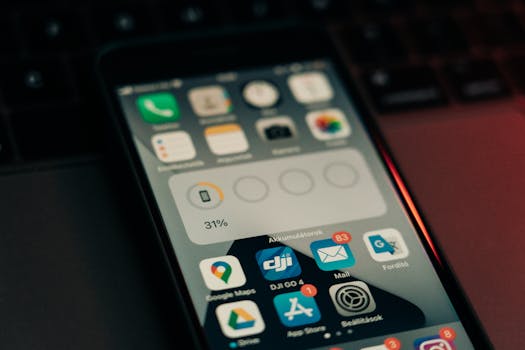
Modern smartphones manage system memory efficiently, but background processes can still impact daily battery life. When you exit an application to return to your home screen, the operating system generally freezes the app state to preserve resources. However, certain app functions continue running behind the scenes, using your device’s Central Processing Unit (CPU), cellular network hardware, and Location Services.
1. Understanding How Background Apps Consume Battery
Understanding how background activity affects battery health helps you decide when to let an application suspend naturally and when to shut it down completely.
Why Background Refresh Eats Power
Background refresh allows applications to pull fresh content from the internet even when you are not actively using them. Social media platforms, news readers, and email clients constantly query remote servers for updates, notifications, and new media. Every time an app initiates a network request in the background, your smartphone wakes up its Wi-Fi or cellular radio.
These hardware wakeups draw significant power from your lithium-ion battery. If dozens of applications fetch data simultaneously throughout the day, the cumulative drain can reduce your overall battery life by 20 to 30 percent.
Suspended Apps vs. Active Background Processes
Operating systems distinguish between a suspended app and an active background process. A suspended app sits in your Random Access Memory (RAM) without executing code or consuming CPU cycles. Reopening a suspended app requires less energy than launching it from scratch because the processor does not need to reload the software’s assets.
Conversely, active background processes continue running code continuously. Navigation tools retrieving your GPS coordinates, music apps streaming audio, and rogue applications with optimization bugs actively consume system resources. These active applications are the primary candidates for manual shutdown.
2. How to Close Apps Draining Battery on iOS (iPhone)
Apple’s iOS handles multitasking automatically, but persistent applications can occasionally glitch and drain resources. Using built-in iOS tools allows you to control power consumption effectively.
Force Closing Apps via the App Switcher
If an app freezes, behaves erratically, or consumes power continuously in the background, force closing it clears it from system memory:
- Swipe up from the bottom of your screen and pause in the middle of the display (or double-click the Home button on older iPhone models).
- Swipe horizontally through the app preview cards to locate the application causing issues.
- Swipe up firmly on the app’s preview card to close it completely.
Avoid force closing every app in your switcher daily. Constantly restarting suspended apps forces the iPhone processor to rebuild temporary files, which uses more power than leaving suspended apps alone.
Managing Background App Refresh Settings
To stop applications from automatically updating in the background without needing to force close them repeatedly, manage your Background App Refresh settings:
- Open the Settings app on your iPhone.
- Tap General, then select Background App Refresh.
- Choose to turn the feature off entirely, limit it to Wi-Fi Only, or toggle off individual switches for resource-heavy apps like social networks, maps, and shopping platforms.
Identifying High-Drain Apps in iOS Settings
iOS includes built-in diagnostics to track software power usage over 24-hour and 10-day windows:
- Navigate to Settings > Battery.
- Scroll down to the Battery Usage by App section.
- Tap Show Activity to see precise metrics on screen time and background run time for each application.
- Locate apps displaying high background activity relative to screen time, and adjust their permissions or uninstall them.
3. How to Close Apps Draining Battery on Android
Android offers granular control over background services, system permissions, and memory usage. You can terminate rogue processes directly or configure system tools to suppress power-hungry apps automatically.
Using the Recents Screen and Force Stopping
To quickly close an active application on Android:
- Tap the Recents button (square icon) at the bottom navigation bar, or swipe up from the bottom of the screen and hold.
- Swipe away the specific app window to dismiss it.
- For persistent apps, open Settings > Apps > See all apps.
- Select the troublesome application and tap Force Stop. This immediately kills all running processes tied to that package.
Restricting Background Battery Usage
Android allows you to apply strict execution limits on specific applications:
- Go to Settings > Apps and select the software you wish to limit.
- Tap App battery usage (or Battery depending on device manufacturer).
- Select Restricted. This setting prevents the app from running in the background, saving power while keeping the app installed for manual use.
Utilizing Adaptive Battery and Deep Sleep Options
Modern Android devices include automated features designed to minimize background drain:
- Adaptive Battery: Found under Settings > Battery > Adaptive preferences, this feature uses machine learning to limit battery usage for apps you rarely use.
- Deep Sleeping Apps (Samsung Galaxy devices): Navigate to Settings > Battery and device care > Background usage limits. Add energy-intensive apps to the Deep sleeping apps list so they never run in the background.
4. Platform Battery Management Comparison
Different operating systems and utility types offer distinct capabilities for controlling background app drain. The table below outlines how iOS and Android handle common energy management tasks.
| Management Feature | iOS (iPhone) Execution | Android Execution | Battery Impact Level | Recommended Usage |
|---|---|---|---|---|
| Force Close Apps | Swipe up in App Switcher | Swipe in Recents / Force Stop | Moderate | Use only when an app freezes or drains excessively. |
| Disable Background Data/Refresh | Settings > General > Background App Refresh | Settings > Apps > App battery usage > Restricted | High | Recommended for social media, news, and retail apps. |
| Location Tracking Control | Settings > Privacy & Security > Location Services | Settings > Location > App permissions | Very High | Set to “While Using the App” for non-navigation apps. |
| Automated Power Management | Native Low Power Mode | Adaptive Battery / Deep Sleep | High | Keep enabled permanently for optimal longevity. |
5. Our Top Pick
For users seeking detailed real-time monitoring and software control over background battery drainage, AccuBattery [(#)] stands out as the single best third-party diagnostic tool available.
While built-in system menus show basic percentage consumption, AccuBattery wins because it measures actual battery charge and discharge currents in real time using your device’s built-in battery controller sensor. It isolates exactly how much power individual foreground and background apps draw per minute, identifies CPU “wake locks” preventing your phone from entering deep sleep mode, and provides clear actionable alerts when background software causes anomalous power drops. By pinpointing precise milliampere-hour (mAh) usage, it removes all guesswork from managing resource-intensive software.
6. Frequently Asked Questions
Does swiping away apps actually save battery?
Swiping away apps generally does not save battery if those apps are suspended in system memory. Force closing an app forces your phone’s processor to reload all code and assets from scratch the next time you open it, which consumes more energy than keeping it cached. You should only swipe away apps that are actively freezing, using GPS navigation, streaming audio, or misbehaving in the background.
How do I stop apps from running automatically in the background?
To prevent apps from launching automatically, disable their background access in your device settings. On iOS, navigate to Settings > General > Background App Refresh and turn off access for specific apps. On Android, go to Settings > Apps, select the app, tap App battery usage, and change its status to Restricted.
Which apps drain the most battery on smartphones?
Social media platforms, navigation software, ride-sharing applications, and free mobile games typically consume the most battery power. These applications rely heavily on real-time location services, background push notifications, high screen brightness, auto-playing video streams, and constant data syncing with remote servers.
Should I use third-party task killers?
No, third-party task killer apps are unnecessary and often counterproductive on modern iOS and Android platforms. Both operating systems feature native RAM and process management that efficiently freeze idle software. Automated task killers force apps to restart repeatedly in the background, resulting in higher overall CPU usage and worse battery drain.
How do I know if an app is draining my battery in secret?
Check your device’s built-in battery diagnostic menu under system settings. Look for apps that show high percentages of battery usage alongside elevated “Background Activity” time, especially if your actual screen time on those apps is low. Unusually warm device temperatures when idle also signal background process strain.
Will turning off location services stop battery drain?
Yes, restricting location services significantly reduces battery consumption. GPS chips demand substantial power to establish and maintain satellite locks. Changing app location permissions from “Always Allow” to “While Using the App” prevents background apps from powering on your location hardware covertly throughout the day.
7. Conclusion
Learning how to close apps draining battery effectively empowers you to extend your smartphone’s daily life without sacrificing core functionality. Rather than routinely force-closing every cached app in your task switcher, focus on identifying persistent background processes, disabling unnecessary app refresh privileges, and setting high-drain applications to restricted execution modes. By combining smart system settings with proper diagnostic monitoring, you can keep your device running efficiently from morning until night.