To fix Bluetooth not working on your phone, turn Bluetooth off, wait ten seconds, and turn it back on, or toggle Airplane Mode to reset your wireless radios. If the connection still fails, restart both your phone and the accessory, delete the paired device profile, and set up a clean pairing connection.
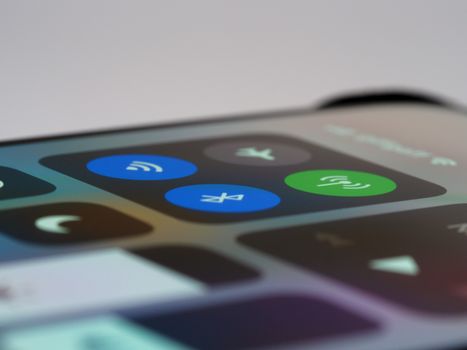
When wireless audio or data transfers fail unexpectedly, temporary software hang-ups are usually to blame. Most smartphones run dozens of background tasks that occasionally lock up the short-range radio chipsets.
1. Immediate Quick-Fix Strategies
Cycle the Bluetooth Radio and Airplane Mode
Before modifying advanced settings, force your phone’s wireless controller to reboot its software stack. Swipe down from the top of your screen on Android or swipe down from the top-right corner on modern iPhones to access the Control Center or Quick Settings panel. Tap the Bluetooth icon to turn it off, wait approximately 15 seconds, and tap it again.
If cycling Bluetooth alone does not help, toggle Airplane Mode on. Airplane Mode cuts power to your cellular, Wi-Fi, and Bluetooth transceivers simultaneously. Leave Airplane Mode active for 30 seconds before switching it off to allow the operating system to reinitialize all communication protocols cleanly.
Perform a Full Power Cycle on Both Devices
A soft reboot often eliminates corrupted temporary files that prevent communication handshakes. Power down your smartphone completely rather than putting it to sleep. While your phone is powering down, turn off your Bluetooth accessory—whether it is a pair of wireless earbuds, a smartwatch, or a car infotainment system.
If your accessory has a charging case or removable battery, disconnect it from power or place the earbuds inside the case for ten seconds. Turn your phone on first, let the operating system finish loading its startup tasks, and then power on the external device to initiate a fresh search.
Disable Low Power and Battery Saver Modes
Both Apple iOS and Google Android prioritize energy conservation when batteries drop below critical thresholds. Aggressive power-saving profiles throttle the energy supplied to internal antennas, reducing transmission power and closing background synchronization threads.
To turn this off on an iPhone, navigate to Settings > Battery and disable Low Power Mode. On Android devices, open Settings > Battery > Battery Saver and switch the toggle to off. Verify that your Bluetooth accessory has sufficient charge as well; accessories with depleted lithium-ion cells frequently reject pairing requests to avoid mid-operation brownouts.
2. Managing Device Profiles and Local Cache
If quick resets fail to restore your connection, corrupted profile certificates and stale device registries are often the root cause. Clearing these entries forces your phone to establish an authenticated handshake from scratch.
Remove and Re-Pair the Connected Device
Smartphones store pairing keys and media metadata for every peripheral they encounter. Over time, these profiles can become misconfigured following accessory firmware updates or mobile operating system patches.
- Open your phone’s Bluetooth settings menu.
- Locate the problematic device under the list of paired or previously connected items.
- On iOS, tap the information icon (“i”) next to the device name and select “Forget This Device.” On Android, tap the gear icon next to the peripheral and choose “Unpair” or “Forget.”
- Put your peripheral into physical discovery mode (usually by holding its power or pairing button until an LED flashes).
- Scan for new hardware on your phone and initiate the connection sequence again.
Clear the Android Bluetooth System Cache
Android separates hardware controller data into distinct system-level background processes. If an error is written to this local cache, your phone will continue attempting to connect using corrupted parameters.
To reset this system cache, go to Settings > Apps > See all apps. Tap the three-dot menu icon in the upper-right corner and choose “Show system apps.” Scroll down the list until you locate “Bluetooth” or “Bluetooth Legacy.” Tap the entry, select “Storage & Cache,” and tap “Clear Cache.” If the issue persists, return to this menu and choose “Clear Storage” (or “Clear Data”), then restart your phone.
Verify Application-Level Permissions
Modern iterations of iOS and Android isolate Bluetooth access behind privacy walls. If you are attempting to connect to a fitness tracker, smart scale, or proprietary headset through a companion app, that specific app must have explicit access to your phone’s Bluetooth hardware.
On iOS, open Settings > Privacy & Security > Bluetooth, and confirm that the companion app is switched on. On Android, navigate to Settings > Apps, tap the companion application, open “Permissions,” and ensure that “Nearby Devices” or “Bluetooth” is marked as “Allowed.”
3. Platform-Specific Fixes for Android and iOS
System-level updates frequently introduce network adjustments that require specialized troubleshooting methods depending on whether you operate an Apple or Android handset.
Resetting iOS Network Configuration
Apple products streamline wireless connections through an integrated network daemon. When this daemon encounters persistent errors, performing a network settings reset clears out corrupted Wi-Fi networks, cellular configurations, VPN profiles, and Bluetooth handshakes without deleting your personal photos or messages.
To perform this reset:
- Open the Settings app on your iPhone.
- Go to General > Transfer or Reset iPhone.
- Tap “Reset” at the bottom of the screen.
- Select “Reset Network Settings” and enter your device passcode when prompted.
- Wait for the iPhone to restart, re-enable Bluetooth, and re-pair your hardware.
Resetting Android Mobile and Wireless Settings
Because manufacturers like Samsung, Google, and Motorola customize their user interfaces, menu locations vary slightly across Android. However, all modern Android builds retain an option to flush wireless memory stacks.
Navigate to Settings > System > Reset options (on Samsung Galaxy devices, go to Settings > General Management > Reset). Tap “Reset Wi-Fi, mobile & Bluetooth” or “Reset network settings.” Confirm your selection by entering your security pattern or PIN. After the reset completes, all previously known wireless devices will be wiped clean, providing an ideal baseline for fresh connections.
Applying Operating System and Patch Updates
Car manufacturers and accessory makers constantly adjust their software to stay compliant with updated Bluetooth Special Interest Group (SIG) guidelines. If your phone runs an outdated operating system build, it may struggle to authenticate modern encryption protocols. Connect to Wi-Fi, verify that your battery has at least 50% capacity, and check for pending software updates in your system settings.
4. Evaluating Fix Methods and Recovery Time
Choosing the right troubleshooting path prevents unnecessary data loss and saves time. The table below outlines common intervention methods, their operational impact, and their success rates for standard connectivity faults.
| Troubleshooting Method | Primary Issue Resolved | Data Lost / Configuration Reset | Typical Time Required | Success Likelihood |
|---|---|---|---|---|
| Radio Toggle / Airplane Mode | Frozen background driver | None | Under 1 minute | Moderate |
| Device Power Cycle | OS task deadlocks | None | 2 minutes | Moderate |
| Forget / Re-Pair Device | Corrupted security keys | Single device pairing profile | 2 minutes | High |
| Clear Bluetooth Cache (Android) | Stale system cache | Temporary metadata only | 3 minutes | High |
| Reset Network Settings | Deep network protocol errors | Wi-Fi passwords, VPN configs | 5 minutes | Very High |
| OS Software Update | Known protocol bugs | None | 15–30 minutes | High |
5. Identifying and Eliminating Signal Interference
Bluetooth operates on the unlicensed 2.4 GHz Industrial, Scientific, and Medical (ISM) radio band. This spectrum is crowded with signals from consumer electronics, which can cause connection drops or prevent initial discovery.
Mitigate Physical and Electromagnetic Barriers
Physical structures absorb short-range radio signals rapidly. Metal plating, reinforced concrete, and even dense human tissue cause packet attenuation. If your phone is in a thick back pocket, encased in a metallic protective case, or sitting behind an entertainment console, your connection stability degrades.
Furthermore, microwave ovens, baby monitors, and dual-band Wi-Fi routers broadcasting on the 2.4 GHz frequency produce radio noise that directly overlaps with Bluetooth channels. When pairing troublesome devices, move at least five feet away from active Wi-Fi routers and heavy household appliances to confirm whether radio saturation is the culprit.
Disconnect Extraneous Peripherals
Smartphones support multiple simultaneous connections, but their active bandwidth is finite. If your phone is actively streaming audio to a speaker while syncing health telemetry from a smartwatch and maintaining a link to a car dash-mount, the Bluetooth controller can run out of available channels.
Open your phone’s active Bluetooth dashboard and temporarily disconnect non-essential peripherals. Limiting your connection to a single accessory reveals whether software queue bottlenecks or hardware resource exhaustion caused the initial malfunction.
Our Top Pick
For diagnosing persistent pairing failures, signal attenuation, and profile conflicts, our top pick is the nRF Connect for Mobile (#) app by Nordic Semiconductor.
Available on both iOS and Android, this tool scans the 2.4 GHz environment to show raw advertising packets, exact signal strength (RSSI), and peripheral service attributes. Rather than guessing whether your phone’s antenna is broken or the external device is failing to broadcast, this utility provides absolute clarity by displaying live connection logs, GATT services, and hardware identifiers directly on your handset screen.
Frequently Asked Questions
Why is my phone searching for devices but not finding them?
Your phone cannot discover a peripheral if the accessory is already linked to another host, such as an iPad, laptop, or family member’s phone. Turn off Bluetooth on nearby secondary host devices, ensure the accessory is in dedicated pairing mode rather than standby mode, and keep both devices within three feet of each other during setup.
Does low battery affect Bluetooth performance?
Yes, depleted batteries impair short-range radios on both devices. When a phone or accessory drops below 20% battery life, built-in battery preservation protocols scale down antenna transmission power, resulting in audio dropouts, increased latency, or a refusal to initiate handshake authentications.
Will resetting network settings delete my personal data?
No, resetting network settings does not touch personal media, text messages, applications, or downloaded documents. It only clears saved Wi-Fi networks and passwords, paired Bluetooth devices, cellular data preferences, and custom VPN configurations.
Why does Bluetooth keep disconnecting in my car?
Car infotainment systems frequently experience profile synchronization conflicts when reading large SMS databases or contact lists. To prevent this, go into your phone’s Bluetooth settings, select your vehicle’s profile, and disable “Contact Sharing” and “Text Message Sync.”
How do I fix Bluetooth audio delay or stuttering?
Audio stutter occurs when the selected Bluetooth codec encounters radio interference or processing latency. To resolve this on Android, enable Developer Options and switch to a more resilient codec like SBC or AAC instead of LDAC. On iOS, unpair other active Bluetooth devices to free up system bandwidth.
Can Wi-Fi interference break my phone’s Bluetooth connection?
Yes, older Wi-Fi routers transmitting on the 2.4 GHz frequency share the exact same spectrum as Bluetooth. If your home network utilizes the 2.4 GHz band, log in to your router administration panel and shift your local network to the 5 GHz or 6 GHz band to eliminate radio clashes.
Conclusion
Understanding how to fix bluetooth not working on phone allows you to resolve frustrating drops, pairing rejections, and hardware stalls without paying for costly repairs. By systemically power-cycling your hardware, unpairing stale peripheral profiles, clearing local system caches, and resetting network settings, you can eliminate the software conflicts that disrupt wireless connections. Always keep your smartphone updated and clear away radio interference to ensure your wireless devices connect smoothly every time.