To secure your Gmail account on a mobile device, open the Gmail app, tap your profile icon, navigate to Manage your Google Account, and complete the built-in Security Checkup. Immediately activate 2-Step Verification using an authenticator app or hardware passkey, remove unauthorized third-party app permissions, and sign out of inactive devices.
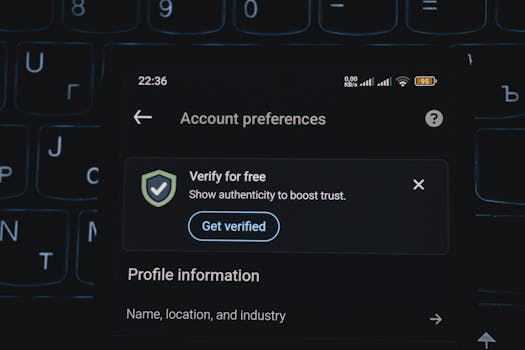
The fastest way to assess your current exposure is the native Google Security Checkup. This tool analyzes your account configurations, scans for compromised passwords, and highlights vulnerable access points without requiring a desktop browser.
1. Run the Google Security Checkup on Mobile
Accessing the Tool via Android and iOS
You can reach the diagnostic dashboard inside the Gmail app on both major mobile platforms:
- Launch the Gmail app on your smartphone.
- Tap your profile picture or initial located in the top-right corner.
- Select Manage your Google Account (on Android, this may read Google Account).
- Swipe across the horizontal navigation bar and tap the Security tab.
- Tap You have security tips or Security Checkup at the top of the screen.
Google displays a color-coded status indicator. Green checkmarks denote secure settings, while yellow or red exclamation marks require immediate attention.
Resolving Critical Warnings
Work through each category shown on the screen. Expand the Recent security activity tab to review recent logins, password resets, or location alerts. If you see an unrecognized sign-in event from a state, city, or mobile carrier you do not use, tap No, it wasn’t me to instantly force a sign-out and prompt a password reset.
Next, inspect the Safe Browsing section within the checkup. Enabling Enhanced Safe Browsing provides proactive protection against malicious links sent through mobile emails, filtering web threats before they load in your phone’s browser.
2. Configure Robust Two-Step Verification (2FA)
Passwords alone are inadequate against modern credential-stuffing and phishing campaigns. Establishing a second verification factor ensures that an attacker cannot access your inbox even if your primary password is leaked in a data breach.
Moving Beyond SMS Verification
Many mobile users rely on SMS text messages for their two-step codes. However, SMS is susceptible to SIM-swapping attacks, where a threat actor convinces your cellular carrier to reassign your phone number to a rogue SIM card. Once diverted, the attacker intercepts one-time passcodes and bypasses your initial login defense.
Instead of SMS, prioritize app-based time-based one-time passwords (TOTP), Google Prompts, or modern FIDO2 passkeys stored in your phone’s secure enclave (such as Apple Keychain or Android Credential Manager).
Two-Factor Authentication Methods Compared
| Authentication Method | Security Level | Phishing Resistance | Convenience on Mobile | Vulnerable to SIM Swap? |
|---|---|---|---|---|
| SMS / Voice Call | Low | Very Low | High | Yes |
| Google Prompts | Moderate | Medium | High | No |
| Authenticator App (TOTP) | High | Medium-High | High | No |
| Hardware Key (NFC/USB-C) | Maximum | Absolute | Moderate | No |
| Passkeys (Biometric) | Maximum | Absolute | Very High | No |
Deploying Passkeys and Authenticator Apps
To upgrade your authentication method from your phone:
- Go to your Google Account settings > Security tab.
- Under “How you sign in to Google,” select 2-Step Verification.
- Authenticate your identity using your current password or phone lock screen.
- Tap Passkeys and security keys to register your current phone as a cryptographic passkey using Touch ID, Face ID, or your Android fingerprint reader.
- Alternatively, tap Authenticator app, open an app like Google Authenticator or Aegis, and link the account to generate offline 6-digit rolling codes.
Once established, download your Backup Codes. Store these offline in a secure physical location; they are your only recovery option if your mobile device is permanently damaged or lost.
3. Manage Connected Devices and Revoke Risky App Access
Mobile users frequently download utilities, games, and productivity tools that request access to Google data. Over time, these legacy connections create unmonitored backdoors into your messages and contact books.
Purging Inactive and Old Mobile Hardware
Every device that has ever accessed your Gmail retains an active authentication token until manually revoked or expired:
- In the Security tab of your Google Account, scroll down to the Your devices module.
- Tap Manage all devices.
- Review every device listed. Pay close attention to duplicate entries of the same phone model, which can indicate an unrevoked past installation or an unauthorized clone.
- Tap any unrecognized device, tablet, or old phone you no longer own, and tap Sign out.
Signing out of old devices invalidates the local OAuth session tokens, instantly barring that specific hardware from pulling new emails from the mail server.
Removing High-Risk Third-Party App Permissions
Many mobile apps ask for full account access rather than restricted scopes. A breached third-party calendar or email client can compromise your entire Google ecosystem.
- In the Security menu, scroll down to Third-party apps & services.
- Tap See all connections.
- Select any application that you do not recognize, no longer use, or that has “Full access to your Google Account.”
- Tap Delete all connections that you have with [App Name] and confirm.
Restricting these links forces services to surrender their access tokens, ensuring your mail store remains strictly isolated.
4. Enable Enhanced Safe Browsing and Update Recovery Details
Mobile phishing attacks commonly arrive via deceptive email links engineered to mimic banking or social platforms. Google provides network-level scanning to intercept these threats directly through your mobile profile.
Activating Enhanced Safe Browsing
Enhanced Safe Browsing shares real-time security data with Google to warn you about dangerous links, downloads, and extensions before they execute:
- Navigate to the Security tab of your Google Account.
- Scroll to the Enhanced Safe Browsing for your account section.
- Tap Manage Enhanced Safe Browsing.
- Toggle the switch to the On position and confirm the prompt.
When activated on mobile, this feature analyzes unusual links sent to your Gmail inbox, mitigating the risk of zero-day web exploits targeting mobile Safari or Chrome.
Updating Mobile Recovery Information
If an intruder attempts to alter your settings, Google verifies the change through your recovery channels. If these records are outdated, you risk being permanently locked out of your account:
- Under the Security tab, scroll to Ways we can verify it’s you.
- Tap Recovery phone. Verify that the number reflects your current personal line and is not an unmonitored VoIP line.
- Tap Recovery email. Designate an alternate, secure email address hosted outside of Google (such as an encrypted Proton or iCloud account). Ensure this backup address also features its own distinct password and multi-factor authentication.
5. Implement Device-Level Mobile Defenses
Account security settings are ineffective if your physical smartphone is unprotected. Mobile operating systems provide hardware-level encryption that protects your local Gmail cache from physical extraction.
Enforcing Biometrics and App-Level Locks
- Operating System Passcode: Ensure your device uses at least a 6-digit numeric passcode or an alphanumeric password. Avoid simple 4-digit PINs, which can be bypassed via basic brute-force automation.
- Biometric Locks: Turn on Face ID, Touch ID, or Android Biometric Unlock to prevent access by individuals who handle your unlocked phone.
- App Privacy Controls (iOS): On Apple devices, open the Gmail app settings, select Privacy settings, and toggle on Require Face ID / Touch ID to lock the app immediately upon closing or after a short delay.
Eliminating Lock Screen Previews
By default, iOS and Android often display message previews on the lock screen. An adversary can use these previews to harvest two-factor verification codes without unlocking your phone.
- Open your phone’s system Settings.
- Navigate to Notifications > Gmail.
- Set Show Previews (iOS) or Lock screen notifications (Android) to When Unlocked or Don’t show notifications at all.
This adjustment keeps your incoming verification codes, sensitive financial receipts, and reset emails invisible to anyone glancing at your screen.
Our Top Pick
Our top pick for securing your mobile Gmail account is the YubiKey 5C NFC ([#]).
While software-based authentication apps provide adequate protection against casual attackers, hardware security keys provide unphishable protection. The YubiKey 5C NFC stands out as the premier security choice for mobile users because it natively supports both modern USB-C physical connections and contactless Near Field Communication (NFC).
To authenticate a login attempt on an iPhone or Android device, you tap the physical key against the back of your phone. Because the cryptographic handshake requires physical proximity and validates the exact web domain, it is impossible for a remote phishing website to steal your login credentials. By registering two YubiKeys to your Google account and enrolling in Google’s Advanced Protection Program, you insulate your mobile Gmail ecosystem against even the most sophisticated targeted attacks.
Frequently Asked Questions
How do I know if someone else is logged into my Gmail on mobile?
Open the Gmail app, tap your profile icon, go to Manage your Google Account > Security > Your devices, and select Manage all devices. Look for unfamiliar device models, operating systems, or geographic locations. If you spot an entry you do not recognize, tap it and select Sign out immediately.
Is the official Gmail app safer than third-party mobile email clients?
Yes. The official Gmail app receives direct, rapid security patches from Google and uses modern OAuth 2.0 token protocols. Third-party clients often cache your account credentials on external servers and may not support advanced security features like Passkeys, Google Prompts, or Google’s Advanced Protection Program.
What should I do if my phone is lost or stolen with Gmail logged in?
Immediately use a computer or another mobile device to visit the Google Account recovery page. Sign in, go to the Security tab, locate Your devices, find your missing phone, and select Sign out. You should also use Apple’s “Find My” or Google’s “Find My Device” to remotely erase the device’s storage.
Does changing my Gmail password log me out on my phone?
Yes. Changing your primary Google password invalidates existing refresh and access tokens across all connected devices, including mobile apps. You will be prompted to enter your new password alongside your secondary verification factor on your mobile phone before new messages can sync.
Why is SMS two-factor authentication considered insecure on mobile?
SMS verification relies on standard telecommunications networks that lack end-to-end encryption. Cybercriminals can intercept these messages through unauthorized SIM swapping, mobile carrier social engineering, or cellular network interception tools (such as SS7 vulnerabilities). Hardware keys and authenticator apps keep your credentials strictly device-bound.
How often should I perform a security audit on my mobile Gmail?
You should conduct a security review every three to six months. Regularly check your signed-in devices, review third-party app permissions, verify that your recovery phone and email addresses are current, and remove any backup codes that may have been exposed or misplaced.
Conclusion
Understanding how to secure gmail account in mobile is essential for safeguarding your private emails, financial alerts, and personal identity. By activating robust two-factor verification or passkeys, clearing inactive hardware connections, revoking stale application permissions, and locking down your physical device’s notification settings, you protect your account against unauthorized access. Routinely running the built-in Security Checkup ensures your mobile defenses remain resilient against evolving phishing strategies and identity theft.