To stop apps from draining your iPhone battery, open Settings > Battery to identify resource-heavy applications, then turn off Background App Refresh and set Location Services to “While Using.” Streamlining push notifications, lowering screen brightness, and activating Low Power Mode will immediately boost your device’s overall battery life.
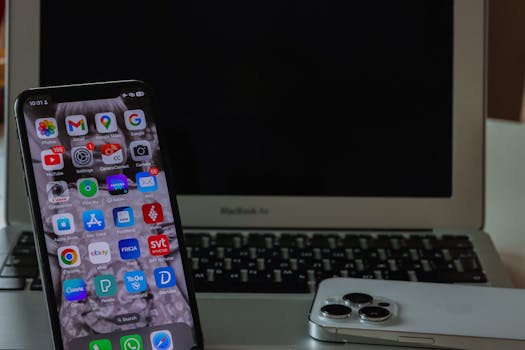
Before changing your device settings, it helps to understand exactly which applications are consuming the most power. Apple provides built-in analytics that detail screen time, background activity, and percentage of overall battery depletion for every application installed on your device.
1. Identify and Audit Battery-Draining Apps
Checking iOS Battery Usage Statistics
To review your device’s power statistics, open the Settings app and select Battery. Wait a few seconds for the graph to populate. Here, you will see a visual breakdown of your battery activity over the past 24 hours or the past 10 days.
Scrolling down reveals a list of apps sorted by their percentage of battery consumption. Tap Show Activity above the list to view exact measurements of screen time versus background time for each app. If an app shows 10 minutes on screen but 3 hours of background activity, that app is fetching data, updating content, or tracking your location without your active interaction.
Differentiating Background Activity from Screen Time
Screen time represents the period when an application is open and actively displayed on your iPhone’s display. High battery usage during screen time is normal for media-heavy tools like video streaming services, navigation apps, and mobile games.
Background activity, on the other hand, occurs when an app runs processes while minimized or while your screen is locked. Apps dedicated to social media, ride-sharing, food delivery, and email often run intensive background tasks. Identifying apps with disproportionate background activity gives you a clear target for adjustments.
2. Restrict Background App Refresh and Location Tracking
Background tasks and location polling are two of the largest continuous power draws on any iOS device. Limiting these actions keeps apps dormant until you explicitly open them.
Disabling or Customizing Background App Refresh
Background App Refresh allows apps to check for new content, update feeds, and download assets even when you are not using them. While convenient, this continuous data exchange rapidly exhausts battery reserves.
To adjust this feature:
- Open Settings and tap General.
- Select Background App Refresh.
- Tap Background App Refresh at the top of the menu to choose between Off, Wi-Fi, or Wi-Fi & Cellular Data.
Choosing Off halts background activity completely. Alternatively, keep the main master toggle set to Wi-Fi, and manually turn off switches for individual apps on the main list. Disable background refresh for apps that do not require real-time updates, such as shopping apps, casual games, and travel tools.
Managing Location Permissions for Apps
GPS tracking requires substantial computing power and hardware activation, which quickly drains your battery. Many apps request continuous access to your location even when they do not require it to function.
To manage location permissions:
- Navigate to Settings > Privacy & Security > Location Services.
- Scroll down to review the list of installed applications.
- Tap each app and set its access to Never or While Using the App.
Additionally, toggle off Precise Location for apps that do not require exact coordinates, such as weather widgets or retail store applications. For maximum savings, scroll to the bottom of the Location Services menu, tap System Services, and toggle off non-essential functions like Significant Locations and iPhone Analytics.
3. Adjust Push Notifications and Data Syncing
Every time your iPhone receives a push notification, the screen lights up, the processor wakes up, and a wireless radio connects to network towers. When dozens of apps send continuous alerts throughout the day, the cumulative battery impact is substantial.
Trimming Excessive Push Notifications
To control incoming alerts and reduce screen wake-ups:
- Open Settings and select Notifications.
- Review the list under Notification Style.
- Tap apps that send non-critical alerts (like games, shopping apps, and news outlets) and switch off Allow Notifications.
For apps where you still want alerts without constant interruptions, enable Scheduled Summary. This native iOS feature collects non-urgent notifications and delivers them in a single batch at times you choose, preventing your screen from waking up continuously throughout the day.
Modifying Email Fetch and Sync Settings
If you have multiple email accounts configured on your iPhone, constant server polling will drain your battery fast.
To lower email sync frequency:
- Open Settings and select Mail (or Calendar / Contacts depending on your iOS version).
- Tap Accounts, then select Fetch New Data.
- Switch off Push at the top if you receive high email volumes.
- Set the Fetch schedule at the bottom to Every 15 Minutes, Every 30 Minutes, Hourly, or Manually.
Choosing Manually saves the most power, as your iPhone will only check for new messages when you open the Mail app.
4. Optimize Display Settings and Motion Effects
The display is one of the most power-hungry components of your iPhone. Optimizing how the screen behaves during app usage directly reduces battery wear.
Leveraging Dark Mode and Auto-Brightness
iPhones equipped with OLED displays (iPhone X and newer models, excluding iPhone SE) consume significantly less power when displaying dark pixels, as black pixels on OLED screens consume zero power.
- Enable Dark Mode: Go to Settings > Display & Brightness and select Dark. You can also set it to Automatic so it turns on at sunset.
- Enable Auto-Brightness: Go to Settings > Accessibility > Display & Text Size, scroll to the very bottom, and ensure Auto-Brightness is toggled On. This prevents your screen from staying at full brightness in dark environments.
Turning Off Live Activities and Motion Effects
Live Activities show real-time information on your Lock Screen or in the Dynamic Island (such as sports scores or ride tracking). Because these updates refresh frequently, they draw extra power.
To disable Live Activities:
- Go to Settings > Face ID & Passcode.
- Enter your passcode and scroll down to Allow Access When Locked.
- Toggle off Live Activities.
To reduce system animation drain, navigate to Settings > Accessibility > Motion and toggle on Reduce Motion. This replaces complex zooming animations with smooth transitions, lessening GPU load.
5. Leverage Built-In iOS Automation and Power Modes
Apple integrates several system-level optimization features that automatically manage background app activity when power is low.
Utilizing Low Power Mode Effectively
Low Power Mode reduces total power consumption by lowering screen brightness, locking the display after 30 seconds of inactivity, turning off Background App Refresh, stopping automatic email downloads, and limiting 5G network usage.
You can turn on Low Power Mode manually under Settings > Battery, or add it to your Control Center for instant access.
To automate Low Power Mode:
- Open the built-in Shortcuts app.
- Select the Automation tab and tap New Automation.
- Choose Battery Level, set the slider to 50% (or your preferred threshold), and select Falls Below 50%.
- Set the action to Turn Low Power Mode On.
Managing Optimized Battery Charging
Heat and bad charging habits degrade battery health over time, making apps appear to drain power faster due to diminished total capacity. Ensure Optimized Battery Charging is active by opening Settings > Battery > Battery Health & Charging and toggling it On. This feature learns your daily charging routine and delays charging past 80% until right before you need to use your device.
| Optimization Strategy | Battery Impact | Usability Impact | Recommended Setting |
|---|---|---|---|
| Disable Background App Refresh | High | Low | Turn Off for Social & Shopping Apps |
| Restrict Location Services | High | Low | Set to “While Using” |
| Enable Dark Mode (OLED) | Medium | Very Low | Always On or Automatic |
| Reduce Push Notifications | Medium | Low | Use Scheduled Summary |
| Fetch Mail Manually | Medium | Medium | Hourly or Manually |
| Enable Low Power Mode | High | High | Activate below 50% |
Our Top Pick
The single best solution for tracking down battery-hogging applications is the native (#) (iOS Built-in Battery Diagnostics dashboard found directly within your device settings). Unlike third-party utility apps that often run continuously in the background and increase battery usage themselves, Apple’s native diagnostic suite operates deep within the system layer with zero overhead.
It wins top pick status because it provides precise, unalterable hardware telemetry showing exact background minutes versus screen time. Furthermore, it generates tailored recommendation banners right at the top of the interface—such as warning you when auto-brightness is disabled or suggesting notification updates—making it the most accurate, safe, and efficient diagnostic tool available for iOS users.
Frequently Asked Questions
Does force closing apps save iPhone battery life?
No, force closing apps does not save battery life on an iPhone. iOS automatically freezes apps when you swipe them away into the background, placing them into a suspended state that uses virtually no power or RAM. When you force close an app and reopen it later, the device must reload its entire data structure into memory, which uses more processing power and drains more battery than letting iOS manage background tasks natively.
Why does my iPhone battery drain fast after an iOS update?
After installing a major iOS update, your iPhone runs intensive background tasks including re-indexing files, re-analyzing photo libraries, and optimizing system databases. This process typically takes between 24 to 48 hours to complete. During this period, increased processor activity leads to temporary battery drain and mild device heating. Battery performance usually normalizes once background indexing finishes.
Which social media apps consume the most battery?
Social media platforms like Meta (Facebook, Instagram), TikTok, Snapchat, and X (formerly Twitter) are among the highest battery-draining applications on iOS. They combine continuous background data fetching, precise location tracking, video auto-playback, and push notification services. Restricting background refresh and location permissions for these specific apps significantly extends overall daily battery life.
Is it harmful to use Low Power Mode all day?
No, using Low Power Mode continuously will not damage your iPhone or its battery hardware. Low Power Mode simply limits system performance, slows down screen refresh rates, halts background app tasks, and dims display brightness to conserve energy. While it limits some background features, running it full-time is completely safe for your device.
Does turning on Dark Mode actually improve battery performance?
Yes, but only on iPhones equipped with OLED displays (such as iPhone X, XS, 11 Pro, and all iPhone 12, 13, 14, 15, and 16 models). OLED screens illuminate individual pixels. When rendering black backgrounds in Dark Mode, those pixels turn off completely, drawing zero battery power. On LCD models like the iPhone SE or older base models, Dark Mode offers visual comfort but does not save battery life.
How do I know if my iPhone battery health requires replacement?
Navigate to Settings > Battery > Battery Health & Charging and check the Maximum Capacity percentage. Apple considers an iPhone battery healthy if it retains at least 80% of its original capacity. If your maximum capacity falls below 80%, or if you see an official service message stating the battery degraded significantly, replacing the battery will restore original performance and eliminate sudden battery drops.
Conclusion
Learning how to stop apps draining battery iphone comes down to auditing power statistics, trimming background app refresh, restricting location permissions, and adjusting display settings. By making targeted configuration changes and taking advantage of built-in iOS tools like Low Power Mode and Dark Mode, you can eliminate unwanted background drain and keep your iPhone running reliably all day long.