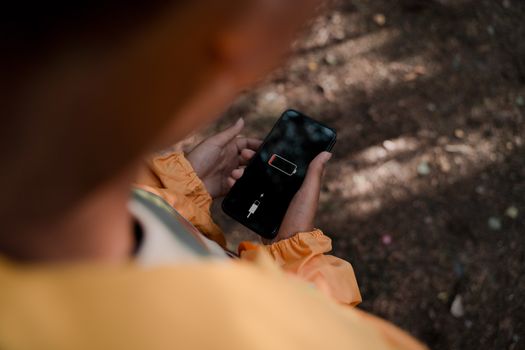
To fix an Android battery draining fast, restrict background activity for power-hungry apps and lower your display brightness while enabling Dark Mode. Additionally, turn off unnecessary features like 5G, Bluetooth scanning, and precise location tracking, and keep your Android OS updated to resolve system bugs.
A rapidly draining Android battery can disrupt your workday, interrupt navigation, and leave you stranded without a working device. While all lithium-ion batteries naturally lose capacity over time, sudden or severe battery drain is usually caused by misconfigured settings, runaway background apps, or inefficient network connections.
Whether you are using a Samsung Galaxy, Google Pixel, Motorola, or another Android smartphone, this guide walks you through actionable steps to identify the root cause and maximize your daily battery life.
1. Identify and Restrict Power-Hungry Apps
The most common culprit behind unexpected battery drain is software running silently in the background. Certain social media platforms, navigation apps, and mobile games continue to consume CPU cycles and transmit data even when closed.
How to Check Battery Usage
- Open your device’s Settings.
- Tap Battery (or Battery & Device Care on Samsung devices).
- Select Battery Usage or View Details.
- Review the app list sorted by percentage consumed since the last full charge.
If an app you rarely open accounts for more than 5% to 10% of your daily battery consumption, it is running unauthorized background tasks.
How to Restrict Background Activity
- On Standard Android / Google Pixel: Go to Settings > Apps > See all apps, select the target app, tap Battery, and change the setting to Restricted.
- On Samsung Galaxy: Go to Settings > Battery > Background usage limits and add power-heavy applications to Sleeping apps or Deep sleeping apps. Deep sleeping apps will never run in the background, saving significant battery.
2. Optimize Display and Screen Refresh Settings
Your smartphone screen requires a massive amount of power. High brightness levels, elevated screen refresh rates, and long display timeouts are primary drivers of battery consumption.
Switch to Dark Mode
Modern Android devices use OLED or AMOLED screens. Unlike traditional LCD panels, OLED displays illuminate pixels individually. Displaying pure black turns off those specific pixels entirely, consuming zero power.
- Go to Settings > Display and toggle on Dark Theme or Dark Mode. You can also schedule it to turn on automatically at sunset.
Adjust Refresh Rate (Motion Smoothness)
High refresh rates (90Hz, 120Hz, or 144Hz) deliver smooth scrolling, but they force the display processor to refresh twice as fast as standard 60Hz displays.
- Go to Settings > Display > Motion Smoothness (or Screen Refresh Rate).
- Choose Standard (60Hz) to maximize battery, or ensure Dynamic/Adaptive mode is selected so the screen lowers its refresh rate when viewing static content.
Reduce Screen Timeout and Brightness
- Set your screen timeout to 30 seconds or 1 minute under Settings > Display > Screen Timeout.
- Disable extreme manual brightness and enable Adaptive Brightness so your phone dims naturally in darker environments.
3. Limit Location Services and Background Scanning
GPS receivers require substantial battery power to lock onto satellites, cellular towers, and nearby Wi-Fi routers. Leaving precise location tracking active for dozens of apps strains your battery continuous.
Manage App Location Permissions
- Open Settings > Location > App permissions.
- Review which apps have access to “Allow all the time.”
- Downgrade non-essential apps (like shopping, social media, or photo editors) to “Allow only while using the app” or “Don’t allow.”
Disable Wi-Fi and Bluetooth Scanning
Android constantly scans for nearby Wi-Fi networks and Bluetooth devices to improve location accuracy, even when Wi-Fi and Bluetooth toggles are switched off.
- Go to Settings > Location > Location services.
- Turn off Wi-Fi scanning and Bluetooth scanning.
4. Manage Wireless Connections and 5G Settings
Wireless radio chips consume extra power when signal strength is poor because the phone increases radio output power to maintain connection stability.
Toggle Off 5G in Poor Signal Areas
5G network infrastructure is expanding rapidly, but searching for or maintaining a weak 5G connection drains considerably more power than connecting to a stable 4G LTE signal.
- Go to Settings > Network & internet (or Connections).
- Tap SIMs or Mobile Network.
- Select Preferred network type and switch from 5G / LTE (Auto) to LTE / 3G.
Turn Off Unused Connectivity Features
- Disable NFC if you do not actively use tap-to-pay services daily.
- Turn off Quick Share or Nearby Share visibility when not transferring files.
- Disable Hotspot / Tethering immediately after use.
5. Utilize Built-in Battery Saver Modes
Android features robust system-level battery preservation tools designed to stretch remaining power without breaking core functionality.
Enable Adaptive Battery
Adaptive Battery uses machine learning to learn your daily app usage patterns. It restricts power access to apps you rarely open while ensuring your primary communication tools operate normally.
- Go to Settings > Battery > Adaptive Preferences (or Adaptive Battery) and toggle the feature on.
Configure Battery Saver Mode
Standard Battery Saver lowers background activity, dims screen output, reduces refresh rates, and limits visual effects.
- Go to Settings > Battery > Battery Saver.
- Set a schedule so Battery Saver automatically switches on when your battery drops below 15% or 20%.
- Use Extreme Battery Saver (Pixel) or Maximum Power Saving (Samsung) during emergency situations to restrict all background functions except essential calling and messaging.
6. Update Software and System Play Services
Operating system updates frequently contain patches for memory leaks, hardware efficiency bugs, and software conflicts that drive up battery drain.
Check for Android OS Updates
- Go to Settings > System > System Update (or Settings > Software Update).
- Download and install any pending system patches.
Update Google Play Services and Apps
Outdated background services can enter infinite loops when trying to sync with cloud servers.
- Open the Google Play Store.
- Tap your profile icon in the top right corner.
- Select Manage apps & device.
- Tap Update all under Updates available.
7. Stop Using Memory Cleaners and Task Killers
Third-party “battery booster” and “RAM cleaner” apps promise to double your battery life, but they often produce the exact opposite result.
When you use a task killer to force-close background applications, Android’s built-in RAM management system automatically reloads those core processes back into memory. This continuous cycle of force-closing and restarting forces your CPU to run at high frequencies, leading to severe battery drain and overheating.
Stick entirely to Android’s native battery settings and remove all third-party task killers, RAM boosters, and clean-up software.
8. Perform a Soft Reset or System Cache Clear
If your phone suddenly starts draining rapidly following a major Android version upgrade, corrupt temporary system files may be stuck in a processing loop.
Perform a Restart
A simple reboot clears temporary system memory (RAM), halts rogue background threads, and resets hardware controllers. Hold down the Power button and select Restart.
Clear System Cache (Advanced)
Clearing the system cache partition deletes temporary OS files without wiping your personal data, photos, or contacts.
- Turn off your device.
- Connect your phone to a computer via USB cable (required for modern Android versions).
- Press and hold the Power + Volume Up buttons until the recovery screen appears.
- Use the volume buttons to highlight Wipe Cache Partition.
- Press the Power button to confirm, then select Reboot System Now.
Quick Reference: Settings to Tweak for Immediate Battery Gains
| Setting / Feature | Standard Setting | Battery-Saving Adjustment | Potential Battery Gain |
|---|---|---|---|
| Display Mode | Light Mode | Dark Mode (OLED screens) | High (10% - 30%) |
| Screen Refresh Rate | High (120Hz Smooth) | Standard (60Hz) or Adaptive | Moderate (10% - 15%) |
| Preferred Mobile Network | 5G Enabled | LTE / 4G Preferred | High in weak signal areas |
| Location Scanning | Wi-Fi & Bluetooth Scan On | Switch Both Scanning Off | Low to Moderate |
| App Background Limits | Standard / Unrestricted | Set Rogue Apps to Restricted | High |
| Screen Timeout | 2 to 5 minutes | 30 Seconds to 1 Minute | Moderate |
9. Evaluate Physical Battery Degradation
If you have tried every software optimization and your Android device still dies within a few hours, the physical battery may have reached the end of its chemical lifespan.
Lithium-ion batteries typically last between 300 to 500 charge cycles (roughly two to three years of daily use) before their usable capacity drops below 80%.
How to Check Battery Health
- On Samsung Devices: Open the Samsung Members app, select Support, tap Phone Diagnostics, and choose Battery Status. If the result shows “Action Required” or “Weak,” the battery needs replacement.
- On Other Android Devices: Download a diagnostic app like AccuBattery from the Google Play Store. Allow the app to monitor a few charge cycles to measure your remaining effective battery capacity in milliamp-hours (mAh).
If your phone shows signs of hardware degradation—such as shutting down unexpectedly while showing 20% charge, swelling beneath the rear cover, or overheating while idle—visit an authorized service center to replace the internal battery.
Frequently Asked Questions (FAQs)
Why is my Android battery draining fast all of a sudden?
A sudden drop in battery performance usually points to a recently installed app running wild in the background, a corrupt system update, or an interrupted download stuck in a loop. Check Settings > Battery > Battery Usage to identify which application is consuming excessive power, and restart your device to interrupt rogue processes.
Does Dark Mode actually save battery on Android?
Yes, but only on devices equipped with OLED or AMOLED screens. OLED panels light up individual pixels. When rendering black backgrounds, those pixels turn off completely, reducing screen power draw by up to 30% depending on your overall display brightness settings.
Should I manually force-close background apps to save battery?
No. Manually swiping apps away in your recent apps menu forces the system to perform a cold boot the next time you open them. Cold boots require significantly more CPU power and battery energy than resuming an app stored efficiently in Android’s RAM. Only force-close apps if they are completely frozen or misbehaving.
How much does it cost to replace an Android battery in the USA?
Out-of-warranty battery replacement for modern Android smartphones typically ranges from $50 to $100 at authorized repair facilities or third-party service centers. If your device is covered by manufacturer warranties or protection plans (such as Samsung Care+ or Google Preferred Care), the replacement may be free or subject to a low deductible.