To resolve Bluetooth issues on Android, toggle your Bluetooth connection off and on, restart both devices, and unpair then re-pair the target accessory in your device settings. If connectivity drops persist, clear the Bluetooth system app cache or reset your phone’s network settings to eliminate corrupted connection data.
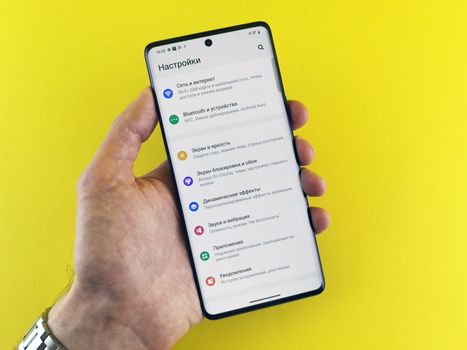
Before adjusting system-level configurations, start with baseline checks. Modern Android builds (such as Android 13 and 14) manage wireless connections via adaptive background services that occasionally freeze or fail to release legacy handshakes.
1. Quick Troubleshooting: Instant Baseline Checks
Toggling Bluetooth and Airplane Mode
The fastest way to restart Android’s internal radio transceivers is by cycling Airplane Mode. Swipe down from the top of your screen to open the Quick Settings panel, tap Airplane Mode, wait 15 seconds, and tap it again to turn it off. This action forces your cellular, Wi-Fi, and Bluetooth chips to reinitialize their protocol stacks simultaneously. If that does not re-establish the connection, toggle the Bluetooth tile directly, allowing 5 to 10 seconds between off and on states so background processes can shut down cleanly.
Power Cycling Both Devices
A soft reboot clears volatile RAM and terminates lingering processes that may lock up your Bluetooth antenna. Turn off your Android smartphone by holding the Power and Volume Up buttons (or the designated Power key depending on your manufacturer) and selecting Restart. While the phone reboots, shut off your peripheral device—whether it is a pair of wireless earbuds, a portable speaker, or an in-dash car infotainment receiver. Powering both units down removes orphaned session keys stored in local memory.
Checking Battery Saver and Location Permissions
Android’s aggressive battery optimization features can shut down background Bluetooth services without warning. If your phone drops below 20% battery, or if Battery Saver is active, your phone may restrict short-range wireless scans. Disable Battery Saver in Settings > Battery.
Additionally, many Bluetooth Low Energy (BLE) accessories require active Location Services to establish a handshake on Android devices. Ensure your Location toggle is active in Quick Settings; otherwise, your phone may refuse to populate nearby devices during an active scan.
2. Managing Device Connections and Pairings
Over time, your Android device accumulates dozens of stored cryptographic profiles from past connections. Corrupted cache pairings or conflicting profiles can trigger recurring handshake failures.
Unpairing and Repairing the Peripheral
A corrupted pairing key is the most frequent reason an Android phone displays “Connecting…” indefinitely without actually pairing.
- Open Settings > Connected devices (or Connections > Bluetooth on Samsung Galaxy devices).
- Find the problematic device under the “Paired devices” list.
- Tap the Gear icon next to the device name.
- Select Forget or Unpair.
- Put your accessory back into its designated discovery/pairing mode (often indicated by an alternating red/blue or rapid blinking LED).
- Return to your phone, select Pair new device, and tap the accessory when it appears under “Available devices.”
Clearing Out Stale Connections
Android manages a limited number of simultaneous active wireless pings. If your list of paired hardware contains old rental cars, discarded headphones, and obsolete smart home gadgets, the Bluetooth stack can experience latency during device discovery. Audit your saved connections and manually unpair any device you have not used within the last 90 days. Keeping your list lean minimizes communication bottlenecks during active discovery cycles.
Resolving Audio Codec and Profile Conflicts
If your headphones connect but fail to play media, the issue may stem from an unsupported Bluetooth audio codec such as LDAC, aptX HD, or AAC. Android attempts to default to the highest-fidelity codec, but firmware mismatches can cause total audio drops.
To manually reassign your codec:
- Navigate to Settings > About phone and tap Build number seven times to unlock Developer options.
- Go to Settings > System > Developer options (or Settings > Developer options on Samsung).
- Scroll down to Bluetooth Audio Codec.
- Change the selection from the default codec to SBC, which is the universal fallback standard.
- If sound returns, your accessory’s firmware does not properly negotiate high-bitrate codecs with your phone.
3. System-Level Fixes: Cache, Updates, and Network Resets
When surface-level configuration adjustments fail, internal system files or corrupt network databases are generally responsible.
Clearing the Bluetooth System App Cache
Android runs Bluetooth as an internal system service rather than a standalone app. If temporary connection data becomes corrupted, clearing the system cache resolves the issue without erasing personal media.
- Navigate to Settings > Apps.
- Tap See all apps, then tap the three-dot menu in the upper-right corner and choose Show system.
- Scroll down and select Bluetooth (or Bluetooth Legacy).
- Tap Storage & cache.
- Tap Clear Cache.
- Reboot your device to allow Android to generate fresh cache files.
Performing a Network Settings Reset
A network reset is one of the most effective software troubleshooting measures available. It restores Bluetooth, Wi-Fi, and cellular radio configurations to their original factory parameters.
Note: This process removes all saved Wi-Fi networks and passwords, cellular APN profiles, and paired Bluetooth devices.
- Open Settings > System > Reset options (on Samsung devices: Settings > General management > Reset).
- Tap Reset Wi-Fi, mobile & Bluetooth (or Reset network settings).
- Confirm your screen lock PIN or pattern.
- Tap Reset settings.
- Once complete, restart your phone and build your connections again from scratch.
Testing in Safe Mode to Isolate Third-Party Apps
Third-party utilities—such as third-party audio equalizers, custom battery managers, smart watch companion apps, and antivirus suites—can hijack your Bluetooth adapter.
To determine whether an installed app is causing the failure:
- Press and hold the Power button until the power menu appears.
- Touch and hold the Power off or Restart icon on the screen until the Safe mode prompt appears.
- Tap OK to reboot into Safe Mode.
- In Safe Mode, all third-party downloads are disabled. Test your Bluetooth connection. If it operates normally, uninstall recently downloaded apps one by one until normal performance resumes.
4. Addressing Interference, Distance, and Battery Constraints
Physical environments and hardware health directly dictate Bluetooth reliability. Standard Bluetooth runs on the crowded 2.4 GHz ISM radio band, making it vulnerable to signal degradation.
Wireless Interference and Signal Congestion
The 2.4 GHz frequency is shared by basic Wi-Fi routers, baby monitors, microwave ovens, and cordless landlines. If you notice Bluetooth stuttering or pairing drops primarily in your home office or kitchen, hardware congestion is likely the cause. To minimize interference, switch your home router’s primary network to the 5 GHz or 6 GHz band, and avoid placing your phone near active microwave ovens or unshielded computer monitors while pairing.
Physical Obstructions and Phone Case Interference
Bluetooth operates on an ultra-low power transmission protocol. Solid obstacles such as brick walls, metal desks, and human bodies absorb the radio signal rapidly. Furthermore, heavy-duty phone cases containing magnetic plates, kickstands with aluminum inserts, or carbon-fiber composites can block the internal antenna lines running through your phone’s chassis. Remove any thick protective case to verify if direct line-of-sight restores stability.
Accessory Battery Degradation
When Bluetooth accessories drop below 15% to 20% battery reserve, their integrated power-management circuits scale down the power supplied to their internal transceivers. This drop in power reduces receiving range and leads to frequent disconnects. Place your wireless earbuds in their charging case or plug in your external speaker for at least 30 minutes before running diagnostic routines.
5. Diagnostic Comparison: Android Bluetooth Fixes
Review this breakdown of standard troubleshooting methods to select the most efficient fix based on your technical comfort level and current device symptoms.
| Troubleshooting Method | Best Used For | Typical Resolution Time | Data Loss Risk | Success Rate |
|---|---|---|---|---|
| Airplane Mode Cycle | Minor background service lockups | 30 Seconds | None | Moderate (40%) |
| Unpair & Re-pair | Authentication and handshake errors | 2 Minutes | None | High (70%) |
| Clear Bluetooth Cache | Persistent service crashes | 3 Minutes | None | High (75%) |
| Network Settings Reset | System-wide wireless connectivity corruption | 5 Minutes | Removes Wi-Fi passwords | Very High (90%) |
| Safe Mode Isolation | Crashes triggered by third-party app conflicts | 10 Minutes | None | Moderate (50%) |
Choosing the Right Fix Based on Your Symptoms
If your phone cannot locate any nearby devices, start immediately by clearing the Bluetooth system cache. If your phone finds the peripheral but throws an “Incorrect PIN or Password” error, the issue is an authentication mismatch: choose the Unpair & Re-pair method. When all wireless radios (Wi-Fi, 4G/5G, and Bluetooth) behave inconsistently at the same time, skip straight to the Network Settings Reset to save time.
Our Top Pick
When built-in Android tools fail to resolve recurring connection drops, our top pick for restoring stability is Bluetooth Pair by WayTools [(#)].
Unlike basic system menus that simply attempt a connection and time out, Bluetooth Pair gives you granular control over your device’s connection protocols. It includes an automated priority-reconnect engine, a clean interface for clearing stale registry keys, and real-time signal-strength readouts that show whether dropped connections stem from hardware interference or software failures. If your Android phone routinely drops your car audio or smartwatch connections, this lightweight, no-cost utility automates the handshake recovery process without requiring root access.
Frequently Asked Questions
Why did my Android Bluetooth suddenly stop turning on?
If the Bluetooth slider immediately switches back to the off position, your phone is likely dealing with a corrupted system cache or an operating system freeze. Perform a forced restart on your device, and if that fails, clear the cache for both the “Bluetooth” and “Bluetooth Legacy” system applications under your device’s Apps menu.
Does resetting network settings delete my personal data?
No. A network settings reset does not delete your photos, messages, documents, or installed apps. It only restores Wi-Fi passwords, saved Bluetooth pairings, cellular data preferences, and VPN configurations back to their factory defaults.
Why does Bluetooth keep disconnecting in my car?
Car infotainment systems frequently encounter software conflicts because they store outdated contact books and text logs synced from your phone. Unpair your phone from your car’s console, delete your car from your phone’s Bluetooth menu, and ensure “Contact Sharing” is toggled off when pairing the two devices again.
How do I clear the Bluetooth cache on Android 13 or 14?
Go to Settings > Apps > See all apps. Tap the three dots in the top-right corner and select Show system. Locate Bluetooth in the alphabetical list, tap it, select Storage & cache, and tap Clear Cache.
Can a low battery cause Bluetooth pairing failures?
Yes. Both your Android smartphone and your Bluetooth accessory incorporate battery-saving algorithms. When battery levels drop below a critical threshold, power to the internal radio transceivers is throttled, which frequently leads to dropped packets, pairing timeouts, and connection instability.
What should I do if my Bluetooth device pairs but has no sound?
Open your Bluetooth settings, locate the paired device, and tap the Gear icon next to it. Verify that the toggles for Media audio and Calls are enabled. If they are already checked, switch the audio output destination from your phone’s volume slider menu or change your codec to SBC in Developer Options.
Conclusion
Understanding how to fix bluetooth not working on android involves a structured process of elimination, moving from simple toggles to deeper operating system adjustments. By cycling your connection radios, purging old hardware pairings, clearing out the Bluetooth system cache, and resetting your network settings, you can eliminate the vast majority of software-based pairing errors. If localized wireless interference or battery constraints are not to blame, standardizing your audio codecs and deploying diagnostic tools will restore dependable wireless connectivity across all your everyday Android accessories.