To recover deleted photos from Google Photos, open the app, tap Collections (or Library) > Trash, select your images, and tap Restore within 60 days of deletion (or 30 days for non-backed-up items). If you already emptied your Trash or passed the deadline, you must leverage device-level recovery, secondary backups, or submit a file recovery request to Google Drive customer support.
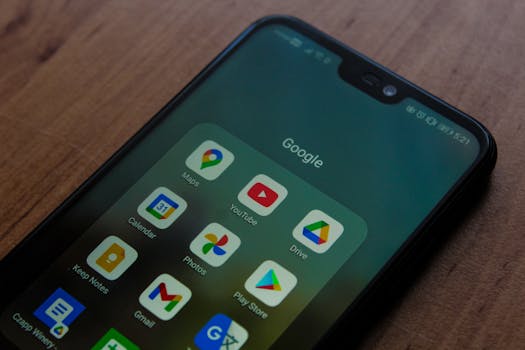
When you press the trash icon in Google Photos, your media does not instantly vanish from existence. Instead, Google routes your photos and videos through a staging area known as the Trash (or Bin, depending on your region). Understanding how this retention engine operates is essential for determining whether your files are easily recoverable or if advanced recovery measures are required.
1. How Google Photos Handles Deleted Media and Retention Rules
Cloud Backup vs. Local Device Deletion
Google Photos operates on a two-way synchronization model. If backup is toggled on, deleting a photo inside the Google Photos app removes it from both the cloud server and your physical smartphone storage. Conversely, if you use a native device gallery app (such as the Samsung Gallery or Apple Photos) to delete an image, the backed-up copy on Google’s cloud servers may remain untouched. Always check both the cloud platform and your local device ecosystem to establish where the deletion actually occurred.
The 30-Day vs. 60-Day Retention Clock
Google applies two distinct expiration clocks based on how the photo was handled:
- 60-Day Window: Photos backed up to your Google Account remain in the Trash for up to 60 days before the system permanently purges them.
- 30-Day Window: Items deleted from an Android device running Android 11 or newer that were never backed up to your Google cloud account remain in the Trash for only 30 days.
If your photos have crossed these operational thresholds, or if you manually clicked “Empty Trash,” Google permanently strips those files from standard user access.
2. Restoring Photos from the Google Photos Trash
If you are within the standard retention window, retrieving your lost pictures takes less than two minutes across mobile operating systems and desktop web environments.
Restoring on Android Phones and Tablets
- Launch the Google Photos app on your Android device.
- Tap the Collections or Library tab located in the lower-right corner of the interface.
- Select the Trash folder from the top utility grid.
- Touch and hold the specific photo or group of photos you want to restore.
- Tap the Restore button located at the bottom-right corner.
- The selected items will immediately return to your phone’s gallery app, your Google Photos library, and any original albums they previously occupied.
Restoring on iPhone and iPad (iOS)
- Open the Google Photos app on your iOS device.
- Tap Collections (or Library) at the bottom navigation panel, then tap Trash.
- Tap Select in the top-right corner of your screen.
- Tap the individual photos you wish to retrieve.
- Tap Restore at the bottom of the screen.
- A confirmation prompt will appear asking to allow Google Photos to modify your library; tap Allow or Restore to finalize the process.
Restoring via Desktop Web Browser
- Open your preferred web browser and navigate to the official Google Photos web portal.
- Sign in using the Google Account credentials tied to your original backups.
- In the left-hand navigation sidebar, click on Trash.
- Hover your cursor over the first photo you want to restore and click the checkmark overlay in the top-left corner of the thumbnail.
- Select any additional photos you require.
- Click the blue Restore button located in the upper-right corner of the browser window.
3. Proven Workarounds to Recover Permanently Deleted Google Photos
When you bypass the Trash or let the 60-day window expire, your photos enter a permanently deleted state. While Google no longer provides a direct “undo” button, several advanced workarounds can successfully recover your missing media.
Requesting File Restoration from Google Drive Support
Because Google Photos shares server infrastructure and storage quotas with Google Drive, Google Drive specialists can sometimes roll back storage deletions if the event happened recently (typically within the last 21 to 30 days).
- Go to the Google Drive Help Center page while signed into your account.
- Scroll to the bottom and select Contact us.
- Enter “Permanently deleted files” as your issue summary.
- Choose File issue or Missing or deleted files as your category.
- Select Email or Chat support.
- Clearly explain to the support specialist that you accidentally cleared your photos and need a server-level file restoration for your Google Drive/Photos ecosystem.
Checking Local Device Trash and Native Folders
If Google Photos permanently deletes an image, the local copy might still linger within your smartphone’s native platform architecture.
- Apple Users (iOS): Open Apple Photos, navigate to Albums, scroll down to Recently Deleted, authenticate with Face ID or Touch ID, and check if the original raw file remains there.
- Android Users: Open your device’s native file manager (such as Files by Google or Samsung’s My Files), navigate to the Trash or Bin, and review the DCIM directory for unindexed cached thumbnails.
Checking Alternate Cloud Backups
Smartphones frequently run background services from multiple vendors simultaneously. Check whether another cloud platform captured the photo before it was removed from Google Photos:
- iCloud Photos: Log into iCloud via browser and check the “Recently Deleted” tab.
- Microsoft OneDrive: Check the OneDrive “Camera Backup” roll and its independent cloud recycle bin.
- Samsung Cloud / Gallery: If your device links Samsung Gallery with Microsoft OneDrive, access Samsung Cloud settings to verify synchronized media states.
Inspecting Google Takeout Archives
If you routinely generated historical archives using Google Takeout, your photos may be preserved in an uncompressed .zip archive on your computer or an external hard drive. Search your hard drives for folders labeled “Takeout” or “Google Photos” to locate point-in-time image dumps.
4. Comparing Recovery Methods: Success Rates and Limitations
The table below outlines the primary avenues for recovering photos, along with their expected success rates and functional limitations.
| Recovery Method | Ideal Scenario | Time Window | Technical Difficulty | Projected Success Rate |
|---|---|---|---|---|
| Google Photos Trash | Photos deleted accidentally within normal limits | 30 to 60 Days | Beginner | 100% |
| Native Device Trash | Synced cloud deletion did not clear phone bin | Up to 30 Days | Beginner | 85% |
| Google Drive Support | Emptied trash of backed-up cloud photos | Under 21-30 Days | Intermediate | 50% - 70% |
| Secondary Cloud Sync | Auto-backup enabled on iCloud/OneDrive | Varies by service | Beginner | 60% |
| Deep Device Data Recovery | Permanently purged files stored on local flash | As soon as possible | Advanced | 25% - 45% |
5. Proactive Measures to Protect Your Google Photos Library
Mitigating accidental loss requires configuring your storage ecosystem to prevent unintended synchronization deletions and permanent purges.
Implementing the 3-2-1 Backup Strategy
Never rely on Google Photos as your sole media archive. Adopt the industry-standard 3-2-1 backup approach:
- Keep three copies of your important visual data.
- Store the copies across two different storage media types (e.g., cloud storage and a local physical solid-state drive).
- Keep at least one copy in an off-site or alternative cloud environment (e.g., OneDrive, Backblaze, or an external hard drive stored in a fireproof safe).
Utilizing the Archive Feature Instead of Deletion
Many users delete photos simply to declutter their primary image stream. Instead of tapping the trash can, use the Archive utility:
- Select your photo, tap the three-dot menu icon, and choose Move to Archive.
- The image disappears from your main camera roll, remains fully searchable, stays out of the Trash, and does not carry an automatic 60-day self-destruct countdown.
Managing Storage Quotas Without Bulk Purging
Avoid mass deletions when approaching your 15 GB free account limit. Use Google’s dedicated Storage Management Tool (photos.google.com/quotamanagement). This dashboard isolates unsupported video formats, massive file sizes, and blurry screenshots, allowing you to free up gigabytes of account space without risking your core photo memories.
Our Top Pick
If your images are permanently wiped from the Google Photos cloud and native phone recycle bins, physical flash storage retrieval is your last working option. Our top pick for recovering locally stored photos on mobile hardware is Tenorshare UltData [(#)].
Tenorshare UltData takes the lead because it can recover deleted photos directly from internal Android and iOS storage partitions without requiring you to root your Android device or jailbreak your iPhone. Unlike standard utility apps that only scan surface thumbnails, UltData performs deep sector-by-sector carving to pull lost JPG, PNG, and HEIC image fragments directly from the device’s local memory before those sectors are overwritten.
Frequently Asked Questions
Can I recover photos deleted from the Trash after 60 days?
Once the 60-day threshold passes, Google Photos permanently clears the items from its front-facing servers. Your only remaining options are contacting Google Drive customer support to request an administrative rollback or running deep-scan file recovery software on the physical smartphone where the original image was captured.
Where do restored photos go after recovery?
Restored photos return to their exact original location. You can find them in your main Google Photos timeline, sorted chronologically according to their original EXIF metadata (the date the photo was originally taken, not the date it was restored). They will also reappear in any local device folders they occupied prior to deletion.
Does deleting a photo in Google Photos delete it from my phone?
Yes. If your device has Google Photos backup enabled, deleting an image within the Google Photos app issues a global deletion command that removes the file from both Google cloud storage and your device’s internal storage. To remove an image from the cloud while keeping it on your phone, you must toggle off backup first or use a computer browser to delete the file remotely.
How do I recover photos from an inactive or deleted Google Account?
If Google deleted your account due to inactivity (under Google’s policy of purging accounts inactive for two years), you must first submit an account recovery request through Google’s recovery portal. If the account itself is permanently unrecoverable, all associated Google Photos data is permanently deleted from Google’s servers.
Can Google Support restore my permanently deleted photos?
Google Drive Support specialists have access to internal snapshots and can occasionally restore recently emptied trash directories. However, this is intended primarily for Google Drive files and is not guaranteed for Google Photos. The request must be submitted within roughly 21 to 30 days of permanent deletion.
Why are my recovered photos showing up with reduced quality?
If you recover images through third-party cache-scraping tools or native file manager previews, you may only be extracting the pre-rendered preview thumbnail rather than the raw, high-resolution original file. If you originally backed up your media using Google’s “Storage Saver” tier, Google compressed your images down to 16 megapixels, meaning they cannot be restored to their original uncompressed format.
Conclusion
Learning how to recover deleted photos from google photos comes down to acting quickly before automated deletion cycles finalize. Start by checking your cloud Trash within the 60-day window, cross-reference native phone folders like Recently Deleted, and reach out to Google Drive support if files were cleared permanently. By establishing secondary backups and archiving images instead of deleting them, you can safeguard your digital library against accidental loss going forward.