To stop apps from draining your battery in the background, toggle off background activity settings in your phone’s system preferences and restrict unnecessary location access. Disabling Background App Refresh on iOS or setting heavy apps to “Restricted” or “Deep Sleep” on Android eliminates unnecessary silent processing and immediately extends daily run time.
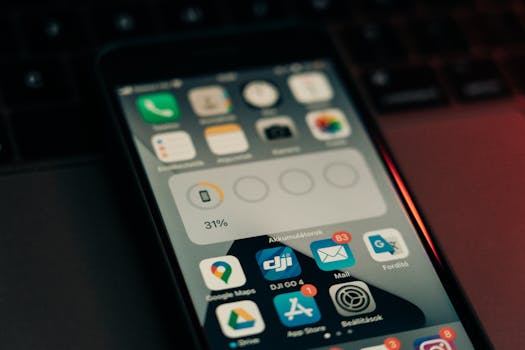
Before disabling settings at random, you need to understand which applications consume the highest percentage of system resources. Both Apple and Google build dedicated energy-monitoring dashboards directly into their operating systems that reveal whether power is draining while an app is actively on your screen or silently cycling in the background.
1. Identify Which Apps Drain the Most Battery
Checking Battery Usage on iOS
To locate your power hogs on an iPhone, launch the Settings app and scroll down to Battery. Allow the tool to populate its activity logs over the last 24 hours or the last 10 days.
Beneath the interactive charge level graph, tap Show Activity to see a breakdown of on-screen time versus background time. If an app like Instagram, Facebook, or a streaming platform displays several hours of “Background” runtime alongside high battery percentages while your active screen time was minimal, that app is actively consuming power when closed.
Checking Battery Usage on Android
Android devices organize battery reporting with slight variations between stock Google Pixel software and Samsung’s One UI, but the baseline process remains identical. Open Settings, select Battery (or Battery and Device Care on Samsung devices), and tap Battery Usage.
Examine the list of installed software sorted by consumption percentage. Select suspect applications to view detailed metrics. If the “Background usage” metric shows significant activity while the app was closed, you have identified your primary culprits.
2. Disable Background App Refresh on iPhone
Apple’s Background App Refresh protocol allows software to check for new messages, download fresh media, and fetch metadata while you are using other apps or while your phone is locked in your pocket. While convenient for email and cloud backup tools, non-essential social networks and retail apps abuse this feature to run tracking telemetry and preload media.
Turning Off Refresh Completely
If your device is older or you want maximum battery life without micro-managing individual toggles, you can disable the entire feature system-wide.
- Open Settings on your iPhone.
- Tap General, then select Background App Refresh.
- Tap Background App Refresh at the top of the menu.
- Select Off.
Choosing “Off” does not break push notifications. Apple routes notifications through the Apple Push Notification service (APNs), which operates independently of background data refreshes. You will still receive direct messages, texts, and breaking news alerts instantly.
Selective App Refresh Strategies
Most users prefer a balanced approach that leaves communication tools active while restricting heavy social media and shopping apps.
Inside the Background App Refresh menu, set the master toggle to Wi-Fi & Cellular Data, then scroll down through the list of installed apps. Manually toggle off background privileges for social networks (TikTok, Facebook, Instagram), navigation apps that do not require live background tracking, streaming services, and mobile games. Leave messaging services, financial apps, and navigation utilities switched on if you rely on immediate background updates.
3. Restrict Background Usage and Put Apps to Sleep on Android
Android handles multitasking differently than iOS, giving developers more leeway to run persistent background services. Fortunately, modern Android releases offer granular control over how aggressively the operating system freezes dormant apps.
Enabling Adaptive Battery
Google includes a machine learning engine called Adaptive Battery that monitors which apps you use frequently and limits power to apps you open rarely.
To ensure this service is active:
- Open Settings and tap Battery.
- Select Adaptive Preferences (or More Battery Settings).
- Switch Adaptive Battery to the On position.
Over several days, Android learns your daily routine and curtails background processing for software you launch infrequently.
Deep Sleeping Apps in Samsung One UI & Pixel
For immediate results, force misbehaving apps into suspended states. On a Google Pixel running stock Android:
- Open Settings > Apps > See all apps.
- Tap the specific application draining power.
- Select App battery usage.
- Change the setting from “Optimized” to Restricted. This prevents the app from running jobs, fetching background feeds, or waking the CPU when idle.
On Samsung Galaxy smartphones, utilize the built-in Deep Sleeping feature:
- Go to Settings > Battery and Device Care > Battery.
- Tap Background usage limits.
- Toggle on Put unused apps to sleep.
- Open Deep sleeping apps, tap the + icon, and add social feeds, games, and shopping apps. Deep sleeping apps never run in the background and only wake up when you explicitly launch them.
4. Manage Location Services and Push Notifications
Background battery consumption is not limited to data downloads; hardware sensors demand significant wattage. The GPS chip, cellular antenna, and screen backlight frequently wake up because apps continually request sensor data in the background.
| Mitigation Method | Battery Savings Impact | User Inconvenience | Best Applied To |
|---|---|---|---|
| Disable Background Refresh | Moderate to High | Very Low | Social networks, streaming apps, games |
| Restrict Location to “While Using” | High | Low | Rideshare, food delivery, shopping apps |
| Android Deep Sleep / Restricted | High | Low | Power-hungry utilities, unused preinstalled apps |
| Disable Silent Push Notifications | Low to Moderate | Very Low | Retailers, games, promotional alerts |
| System Low Power / Battery Saver | Extreme | Moderate | Emergencies, long travel days, low battery |
Restricting GPS Tracking Permissions
When an application continuously monitors your physical coordinates via GPS in the background, your battery drains rapidly.
On iOS, navigate to Settings > Privacy & Security > Location Services. Review every installed app. Any software set to “Always” should be changed to While Using the App or Never. Food delivery, rideshare, and weather apps operate properly with “While Using the App”; only dedicated turn-by-turn navigation or fitness tracking apps require background GPS.
On Android, navigate to Settings > Location > App location permissions. Group apps by permission levels and move non-essential software from “Allow all the time” down to Allow only while using the app. Additionally, disable Wi-Fi scanning and Bluetooth scanning within the Location Services menu to prevent ambient network scans when Wi-Fi and Bluetooth are turned off.
Taming Battery-Hungry Push Alerts
Every push notification turns on the cellular modem, wakes the central processor, and illuminates the screen for several seconds. When dozens of apps send promotional alerts throughout the day, the cumulative draw drains a significant portion of your battery capacity.
Audit your notifications by turning off alerts for apps that do not involve real-time communication. On either operating system, enter the Notifications menu in Settings and systematically turn off alert banners, sounds, and lock screen permissions for shopping apps, casual games, and entertainment software.
5. Built-in Operating System Tools vs. Third-Party Task Killers
A common misconception among smartphone users is that manually swiping apps away in the multitasking switcher saves battery. In reality, force-quitting applications on modern iOS and Android versions worsens battery drain.
The Problem With Force-Quitting Apps
Both Apple’s iOS and modern Android systems are built on sophisticated memory management architectures. When an app sits idle in RAM, it consumes virtually zero power.
When you swipe an app away to force-close it, you purge it entirely from random-access memory. The next time you open that app, the processor must reload all code, assets, and caches from flash storage. This operation stresses the CPU, generates heat, and draws significantly more battery than if the app had remained suspended in memory. Instead of manual task killing, rely on OS-level restrictions like Low Power Mode.
Maximizing System Low Power Modes
When you need to stop all background drain simultaneously, engage your phone’s native power-saving engine:
- iOS Low Power Mode: Temporarily reduces background activity, pauses iCloud syncing, stops automatic mail fetching, drops the screen refresh rate to 60Hz, and disables Background App Refresh entirely. Enable it via Settings > Battery > Low Power Mode, or add its toggle to your Control Center.
- Android Battery Saver: Decreases CPU clock speeds, cuts background sync for all non-vital accounts, limits network operations when the screen is locked, and turns your interface to dark mode. Access this via the Quick Settings shade.
Our Top Pick
If you want a dedicated utility to take control of background app behavior on Android devices without rooting your phone, our top pick is Greenify.
While modern mobile operating systems manage idle applications better than early iterations, persistent apps—especially social network wrappers and ad-supported free games—frequently employ background sync hooks to bypass standard OS limits. Greenify wins because it does not act like a destructive “RAM booster” or task killer that force-stops processes in a loop. Instead, it leverages Android’s native accessibility frameworks and Doze parameters to smoothly hibernate misbehaving apps the moment you turn off your screen.
By freezing stubborn apps into a state of total dormancy until you explicitly open them again, Greenify stops hidden wake locks and background battery drain while ensuring the rest of your system remains responsive and efficient.
Frequently Asked Questions
Does closing apps from the app switcher save battery?
No, constantly swiping apps out of your recent apps list actually drains more battery. When an app is suspended in RAM, it uses minimal energy, but reopening a force-closed app requires the processor to reload all code from storage, causing a spike in power consumption.
Why do social media apps drain so much battery even when not in use?
Social media applications frequently execute background processes to sync timelines, upload analytics data, listen for incoming calls, fetch targeted advertisements, and track your location. Restricting their background data and location access prevents them from running these tasks while dormant.
Does turning off Background App Refresh stop notifications?
No, disabling Background App Refresh does not prevent you from receiving notifications. Push notifications are handled through centralized system services managed directly by Apple and Google, so your messages, calls, and breaking alerts will still arrive immediately.
How does 5G affect background battery drain?
5G radios consume considerably more power than 4G LTE, particularly in areas with fluctuating coverage where the phone constantly switches bands. When apps sync large files or stream data in the background over an active 5G connection, the battery drains much faster.
Will putting apps in deep sleep delete my data or accounts?
No, putting an app into deep sleep or restricted mode does not erase your login credentials, saved preferences, or personal data. It simply prevents the app from running any background processes, executing background tasks, or connecting to the network while you are not using it.
Can a degraded battery make background draining seem worse?
Yes, as a lithium-ion battery chemically ages, its maximum capacity decreases. A background process that once consumed 2% of a healthy battery over an hour might drain 5% to 8% on an older, degraded battery with reduced capacity, making background activity much more noticeable.
Conclusion
Understanding how to stop apps draining battery in background processes is essential for keeping your smartphone reliable throughout a busy day. By monitoring battery usage menus, turning off background refresh for non-essential apps, and restricting aggressive location tracking, you eliminate hidden power waste without losing crucial communications. Take a few minutes to audit your permissions and configure your phone’s built-in power-saving features to enjoy longer daily battery life and a cooler, more responsive device.