If your Samsung Galaxy phone isn’t delivering notifications, the issue is usually caused by aggressive battery optimization, misconfigured App Sleep settings, or disabled background data usage in One UI. You can quickly fix this by turning off “Put unused apps to sleep,” granting unrestricted battery usage to affected apps, and resetting app preferences in system settings.
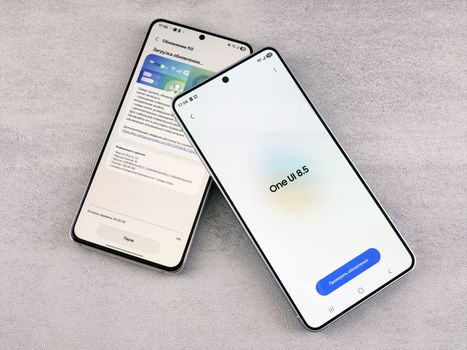
Samsung’s custom Android interface, One UI, is known for its smooth animations, deep customization, and excellent security features. However, One UI also includes aggressive background process management designed to extend battery life. When these power-saving measures interact with installed applications, incoming push notifications can get delayed or blocked entirely.
1. Why Samsung One UI Notifications Stop Working
Deep Sleep and Battery Management Mechanics
To maximize battery life across Galaxy S, Z, and A series devices, One UI continuously monitors which applications you use throughout the day. Apps that sit idle for a few days are automatically placed into “Sleeping” or “Deep Sleeping” states. When an app enters deep sleep, Samsung freezes its background activities entirely. Consequently, push notification services like Firebase Cloud Messaging (FCM) cannot wake the application to display alerts until you open the app manually.
Changes to Notification Categories in Recent One UI Updates
With recent updates, such as One UI 6 and One UI 6.1, Samsung redesigned how notification channels function. By default, “Notification categories” for individual apps may be hidden deep inside system sub-menus. If a specific alert category (such as direct messages or incoming call alerts) becomes toggled off during an OS update, you will miss push alerts even if the app’s primary notification toggle appears enabled.
2. Step-by-Step Fixes for One UI Notifications
If you consistently miss important messages, emails, or app updates on your Galaxy device, systematically apply the following step-by-step configurations.
Adjust Battery Optimization to Unrestricted
The primary reason apps stop sending push alerts is battery optimization. Setting critical communication apps to “Unrestricted” ensures the operating system never pauses background services.
- Open Settings on your Samsung Galaxy device.
- Scroll down and tap Apps.
- Select the app that is not sending notifications (e.g., WhatsApp, Gmail, Slack).
- Tap on Battery.
- Change the setting from Optimized or Restricted to Unrestricted.
Remove Apps from Sleeping and Deep Sleeping Lists
Samsung maintains automated lists that put background applications to sleep. You must manually exclude important apps from these automated restrictions.
- Navigate to Settings > Device Care (or Battery and Device Care).
- Tap on Battery, then choose Background usage limits.
- Toggle off Put unused apps to sleep if you want to disable automatic sleeping globally.
- If you prefer to keep the feature on, tap Never auto-sleeping apps.
- Tap the + (plus) icon in the top right corner, select your essential messaging and email apps, and tap Add.
Enable Unrestricted Background Data Usage
If an app cannot use mobile data or Wi-Fi when running in the background, it cannot fetch new alerts while your screen is off.
- Go to Settings > Apps and select your troublesome application.
- Tap Mobile Data.
- Ensure both Allow background data usage and Allow data usage while Data saver is on are toggled ON.
Reset App Preferences Across One UI
If multiple apps have stopped pushing notifications simultaneously, corrupted permissions or background restrictions might be at fault. Resetting app preferences restores default permissions without deleting your personal data.
- Open Settings and tap Apps.
- Tap the three dots (More options) in the top right corner.
- Select Reset app preferences.
- Confirm by tapping Reset.
3. Advanced Settings to Prevent Delayed Alerts
When basic app toggles do not resolve notification dropping, fine-tuning deeper operating system controls will keep background sync engines online.
Disable Adaptive Battery Features
Adaptive Battery uses machine learning to predict your app usage patterns and limit power to infrequently opened software. However, it frequently miscalculates background requirements for messaging apps.
- Open Settings and navigate to Device Care > Battery.
- Scroll down and select More battery settings.
- Toggle off Adaptive battery.
Enable Notification Categories
If you updated to One UI 6 or newer, you must manually ensure that fine-grained notification management is exposed in your settings.
- Go to Settings > Notifications > Advanced settings.
- Scroll to the bottom and enable Manage notification categories for each app.
- Return to Settings > Apps, choose your application, tap Notifications, and select Notification categories.
- Verify every relevant sub-channel switch is turned ON.
Check Modes & Routines and Do Not Disturb
Samsung’s Modes & Routines tool can automatically trigger Do Not Disturb (DND) modes based on your location, charging status, or time of day.
- Go to Settings > Modes and Routines.
- Check active modes (such as Sleep, Work, or Driving) to ensure they are not suppressing notifications.
- Open Settings > Notifications > Do Not Disturb.
- Verify DND is turned off, or add critical apps to the App exceptions list.
4. Comparing the Most Effective Notification Fixes
Selecting the right troubleshooting method depends on whether you are experiencing issues with one specific app or across your entire device.
| Fix Method | Success Rate | Impact on Battery | Best Used For |
|---|---|---|---|
| Unrestricted App Battery Setting | Very High | Minor increase in consumption | Single apps (WhatsApp, Gmail, Ring) |
| Removing Apps from Deep Sleep | High | Low impact | Apps that stop syncing after a few days |
| Disabling Adaptive Battery | Moderate | Negligible impact | System-wide notification delays |
| Resetting App Preferences | High | None | Multiple failing apps after a One UI update |
| Enabling Background Data Usage | High | Low impact | Missing alerts while on cellular networks |
5. System Maintenance and Cache Clearing
System updates can leave residual temporary files in device caches that conflict with notification services. Performing routine maintenance clears out corrupted configuration blocks.
Clear Individual App Cache and System Partition
Clearing cache removes corrupted temporary data while keeping your user accounts and saved data intact.
- Go to Settings > Apps, select the problematic app, and tap Storage.
- Tap Clear cache in the bottom right corner (do not tap Clear Data unless you want to log back in).
- For system-wide glitches, turn off your Samsung device, hold down the Power Button and Volume Up Button simultaneously until the Android recovery screen appears, select Wipe cache partition using volume keys, confirm, and reboot your phone.
Update Software and Google Play Services
Notification handling relies heavily on Google Play Services and One UI framework code. Keeping software updated resolves known software bugs.
- Go to Settings > Software update > Download and install to fetch the latest Samsung patches.
- Open Settings > Apps > Google Play Services > App details in store to ensure system communication libraries are fully updated.
Our Top Pick
When built-in One UI settings fail to clarify why alerts are dropping, our top pick for managing and fixing Galaxy notification issues is Samsung Good Lock (NotiStar).
Developed directly by Samsung, Good Lock is a modular system customization suit available via the Galaxy Store. The NotiStar module acts as a bulletproof notification log and diagnostic service that runs independently of One UI’s main launcher settings.
Why NotiStar Wins
- Bypasses Launcher Glitches: NotiStar captures incoming alerts directly from the system kernel, preserving notification history even if One UI fails to play a sound or display a banner on your lock screen.
- Pinpoints Root Causes: By comparing NotiStar’s logs against your lock screen, you can immediately determine whether the issue is app delivery (no log) or One UI display settings (log exists, but no visual alert).
- Zero Battery Overhead: Because it is built natively by Samsung engineers specifically for Galaxy hardware, it runs smoothly without excessive resource drain.
To install it, open the Galaxy Store on your phone, search for Good Lock, download the app, and activate the NotiStar plugin inside the application interface.
Frequently Asked Questions
Why am I not receiving notifications on my Samsung Galaxy until I open the app?
This occurs because Samsung’s power management system has placed the app into “Deep Sleep” or limited its background data usage. One UI freezes the application process when it is closed, preventing push notifications from reaching your phone until you manually relaunch the app.
How do I fix delayed WhatsApp or Gmail notifications in One UI?
To resolve delays on messaging or email apps, navigate to Settings > Apps, select the app, tap Battery, and set it to Unrestricted. Additionally, ensure background data is enabled and add the app to the “Never auto-sleeping apps” list under Device Care.
Will resetting app preferences delete my personal device data?
No, resetting app preferences does not delete your personal photos, files, messages, or stored data. It simply resets default app choices, notification permissions, background data restrictions, and app action permissions back to their factory settings.
Why are notification badges showing, but no popup or sound plays?
This happens when alert notifications are set to “Silent” or notification categories are misconfigured. Go to Settings > Apps, select the app, tap Notifications, and ensure that Allow sound and vibration is checked rather than “Deliver quietly.”
Does Samsung’s “Deep Sleeping Apps” feature stop notifications?
Yes. Deep sleeping apps will never run in the background. They remain completely paused and cannot fetch incoming data, play sound alerts, or send push banners until you physically open them.
How does Power Saving mode affect One UI notification alerts?
When Power Saving mode is turned on, One UI restricts background network usage, disables background sync, lowers CPU performance, and pauses location services. This severely restricts background notification delivery for non-essential applications.
Conclusion
Resolving a persistent samsung one ui notification not working fix comes down to balancing Samsung’s aggressive background battery management with your communication needs. By setting critical applications to Unrestricted battery mode, removing essential tools from automatic sleeping lists, and verifying background data settings, you can permanently restore instant push alerts across your Galaxy device. Perform these step-by-step adjustments today to ensure you never miss crucial messages, calls, or app updates again.